On this page
A model file can fit on disk and still fail to load. It can load successfully and run out of memory on the first request. Those are different failures, and neither tells you whether the model can fix your code.
The setup here serves Qwen3.6 through llama.cpp, using a pre-quantized Unsloth GGUF file. You don't need the Unsloth Python package. Start with one verified model file, one server slot, and one short answer. Keep that configuration for comparisons with longer context and multi-token prediction.
This serves a model, not a complete coding agent. Reading repositories, running tests, and applying patches require a client with those tools. A loopback endpoint keeps this server off the network, but doesn't establish that an attached client has no telemetry or hosted fallback. Check those data paths before sending private code.
Choose a model and a quant
The two checkpoints here are Qwen3.6-27B and Qwen3.6-35B-A3B, both Apache-2.0 licensed. The 27B model uses dense feed-forward layers. The 35B-A3B model uses a mixture of experts (MoE): its router selects 8 of 256 experts per token, alongside a shared expert. Its name distinguishes 35B total parameters from roughly 3B active per token. Sparse computation doesn't make the inactive weights disappear from storage.[1][2]
Unsloth publishes these rounded hardware estimates, rechecked October 10, 2026. Its table describes total RAM plus VRAM, or unified memory, not a guarantee of full GPU residency.[3]
| Model | Plain 3-bit | Plain 4-bit | MTP 3-bit | MTP 4-bit |
|---|---|---|---|---|
| 27B | 15 GB | 18 GB | 16 GB | 19 GB |
| 35B-A3B | 17 GB | 23 GB | 18 GB | 24 GB |
Use the table to shortlist downloads, then check actual free memory and runtime allocation. It doesn't specify your context size, backend buffers, or other running applications. RAM and VRAM also aren't interchangeable in speed: offloading layers to the CPU can make a run possible while slowing generation.
The worked example uses Qwen3.6-27B-UD-Q3_K_XL.gguf. The complete filename matters. UD identifies Unsloth Dynamic, Q3 indicates a low-bit quantization family, and the remaining suffix identifies the particular recipe. These files mix tensor precisions; Q3 doesn't mean every stored value occupies exactly three bits. Unsloth describes model-specific calibration and tensor choices in its Dynamic GGUF documentation.[4]
The pinned Q3 file below contains 14,473,431,264 bytes: 14.47 decimal GB, or 13.48 GiB. Neither number is its measured GPU footprint. Don't subtract a decimal file-size label from a GPU's advertised capacity and call the remainder a cache budget. Quantization metadata, backend placement, cache, and scratch buffers all affect the running allocation.[5]
Q3 is a smaller starting artifact, not our claim of the best coding quality. If it runs comfortably, compare a Q4 file on the same tests. If it doesn't fit, reduce GPU offload or choose a smaller artifact. Model Quantization explains the size and quality trade-off.
Build and verify a text-only server
The commands target Linux with an NVIDIA GPU. Install Git, CMake, a C++ compiler, curl, jq, and the CUDA toolkit and driver required by your system. Allow at least the model's download size in free disk space, plus space for the source and build. The optional MTP download later is another roughly 14.79 GB.
Save this block as run-qwen36.sh in a working directory and run it with bash run-qwen36.sh. It clones into a new llama.cpp directory; don't run it over an existing checkout. The script stops if the build, download, or checksum verification fails. The commit and artifact metadata were rechecked on October 10, 2026; the commands aren't a claim of a tested GPU configuration.[6][5]
#!/usr/bin/env bash
set -euo pipefail

git clone https://github.com/ggml-org/llama.cpp
git -C llama.cpp checkout 8e7f22b67ef4667b4ddd50230771287f328cfb3f
cmake -S llama.cpp -B llama.cpp/build \
  -DBUILD_SHARED_LIBS=OFF -DGGML_CUDA=ON
cmake --build llama.cpp/build --config Release -j --target llama-server
./llama.cpp/build/bin/llama-server --version

MODEL_REPO="unsloth/Qwen3.6-27B-GGUF"
MODEL_REV="82d411acf4a06cfb8d9b073a5211bf410bfc29bf"
MODEL_FILE="Qwen3.6-27B-UD-Q3_K_XL.gguf"
MODEL_SHA256="cff4a2da6b5350a53f57dc6f798516e0195816f90c196c3f7bd3fd55556632dd"
MODEL_DIR="models/qwen36-27b-q3"

mkdir -p "$MODEL_DIR"
curl -fL --retry 5 --retry-delay 2 -C - \
  -o "$MODEL_DIR/$MODEL_FILE" \
  "https://huggingface.co/$MODEL_REPO/resolve/$MODEL_REV/$MODEL_FILE?download=true"
printf '%s  %s\n' "$MODEL_SHA256" "$MODEL_DIR/$MODEL_FILE" \
  | sha256sum -c -

./llama.cpp/build/bin/llama-server \
  --model "$MODEL_DIR/$MODEL_FILE" \
  --no-mmproj \
  --alias local-qwen36 \
  --ctx-size 8192 \
  --parallel 1 \
  --n-gpu-layers all \
  --flash-attn on \
  --reasoning off \
  --host 127.0.0.1 \
  --port 8080
The download uses an immutable repository revision and verifies SHA-256. A checksum proves that you received the expected bytes, not that the model is safe or correct. The explicit --model path also avoids resolving a moving Hugging Face tag. --no-mmproj keeps the run text-only; the pinned runtime otherwise supports automatic projector downloads when using -hf.[6]
--n-gpu-layers all requests full GPU offload; it isn't a fit guarantee. If loading fails for lack of device memory, reduce it to a numerical layer count and record that change. For a CPU-only attempt, use --n-gpu-layers 0 and build with -DGGML_CUDA=OFF. On Apple silicon, use the CUDA-off build with the default Metal backend; replace sha256sum -c - with shasum -a 256 -c -. CPU, CUDA, and Metal results are different configurations, not interchangeable performance measurements.[6]
The server stays in the foreground. After a successful download and build, restart by rerunning the variable assignments and final server command, not the clone. Wait for the log to report readiness before sending requests.
Check the answer, not just the HTTP status
Qwen3.6 normally enables thinking. The initial command explicitly disables it so a small output limit doesn't get consumed by a reasoning trace. At this llama.cpp commit, --reasoning off sets the template's enable_thinking option; the older --chat-template-kwargs '{"enable_thinking":false}' spelling still works but is deprecated.[6][3]
In another terminal, save and run the following script. It checks health, sends a non-streaming request, then requires exactly the requested answer after trimming surrounding whitespace:
#!/usr/bin/env bash
set -euo pipefail

curl -fsS --max-time 5 http://127.0.0.1:8080/health
curl -fsS --max-time 120 http://127.0.0.1:8080/v1/chat/completions \
  -H 'Content-Type: application/json' \
  -d '{
    "model": "local-qwen36",
    "messages": [
      {"role": "user", "content": "Reply with exactly: endpoint-ready"}
    ],
    "temperature": 0,
    "max_tokens": 64,
    "stream": false
  }' > qwen36-smoke.json

jq -e '
  (.choices | length) == 1
  and .choices[0].finish_reason == "stop"
  and .choices[0].message.role == "assistant"
  and (.choices[0].message.content | type) == "string"
  and (.choices[0].message.content | gsub("^\\s+|\\s+$"; "")) == "endpoint-ready"
' qwen36-smoke.json
The health check has a five-second limit and generation has a 120-second client limit. A timeout fails this smoke test even if the server later finishes; it is a latency failure, not proof of a bad quant. A health response only establishes readiness. This extra check catches truncated output and answers such as “I can't reply with endpoint-ready,” which a substring test would incorrectly accept. Temperature zero is used for this tiny diagnostic, not as a general coding recommendation. If the assertion fails, inspect qwen36-smoke.json and the server log before changing quantization.
A client can now use base URL http://127.0.0.1:8080/v1 and model name local-qwen36. Some SDKs require an API-key string even though this server configuration doesn't enable authentication; a placeholder such as local satisfies that client requirement. It doesn't protect the endpoint. Don't change the host to 0.0.0.0 without adding appropriate authentication and network controls.
Understand what longer context allocates
Both model cards specify 262,144 native context tokens and an extension to 1,010,000 with YaRN, a technique for scaling rotary position embeddings to longer sequences. That limit includes input and generated output. It doesn't say your machine can allocate the corresponding state. Qwen warns that static YaRN can affect shorter-text performance, so leave scaling alone for this short-context setup.[1][2]
Qwen3.6 has a hybrid attention stack. The 27B model contains 16 conventional Gated Attention layers and 48 Gated DeltaNet layers; 35B-A3B contains 10 and 30 respectively. Counting every layer as a conventional transformer cache would be wrong. Counting only attention K/V and calling that the whole runtime would also be wrong.[1][2]
We can calculate one useful component: the unquantized FP16 (16-bit floating-point) key/value entries in the conventional attention layers, for one sequence. A KV head stores one key vector and one value vector per token. The 27B model has four KV heads in each of its 16 conventional attention layers, with 256 numbers per vector. Each FP16 number takes two bytes.[1]
At 8,192 token slots, that component takes bytes, exactly 0.5 GiB. The two factors of 2 count key plus value and bytes per number. Increasing capacity to 32,768 slots multiplies this component by four, to 2 GiB. It doesn't multiply the already-loaded model weights by four.
The general formula is tokens × layers × KV heads × head dimension × 2 for K/V × 2 bytes. It excludes weights, recurrent state and its checkpoints, allocation padding, vision, draft state, and scratch buffers.
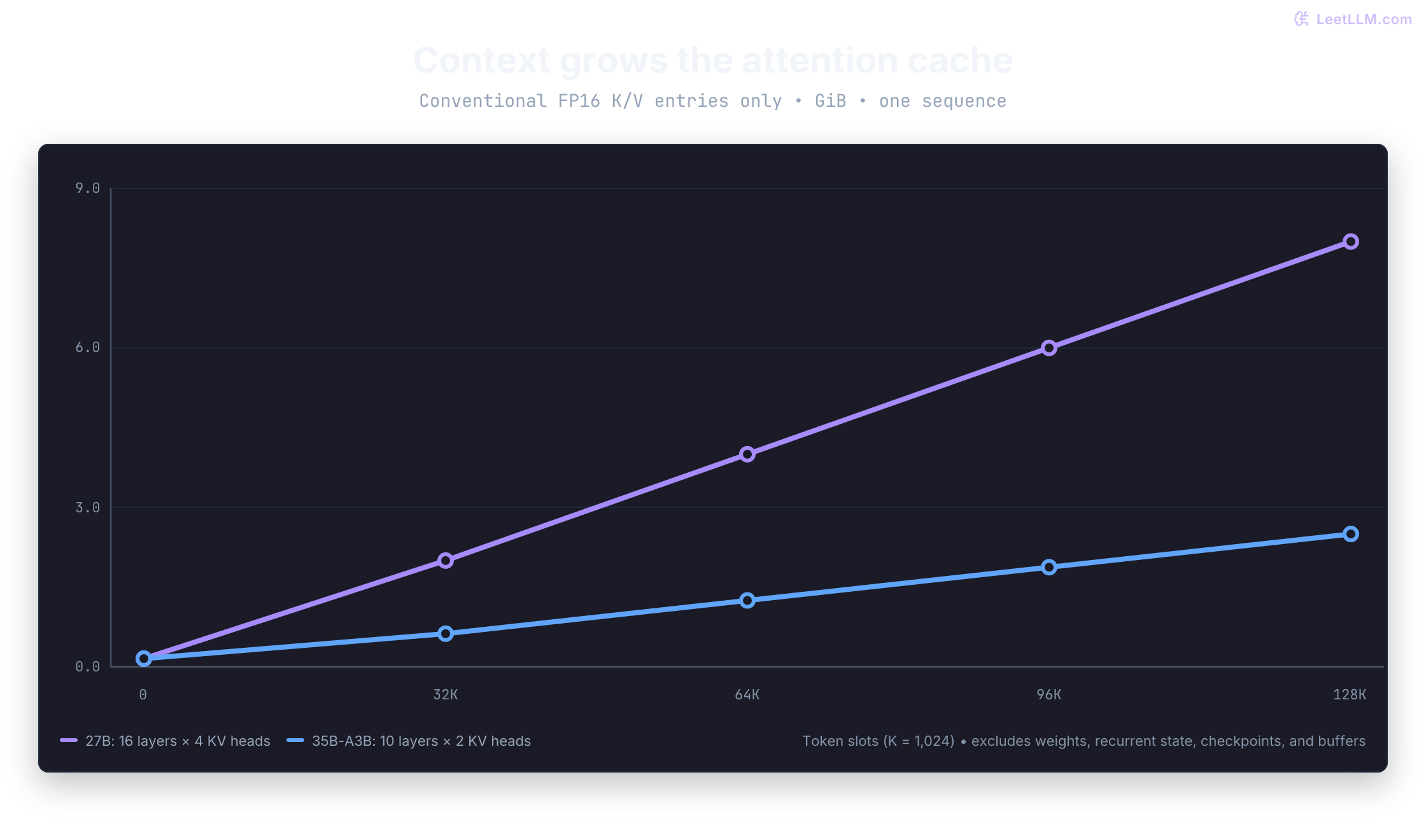
The 35B-A3B model has more total parameters than 27B. Must it also use more conventional attention-cache memory for the same token capacity and FP16 cache?
Answer
No. Its conventional attention stack has 10 layers and two KV heads per layer, compared with 16 layers and four KV heads for 27B. With the same head dimension and precision, its attention-cache component is 20/64 of the dense model's. That says nothing by itself about which complete runtime fits: weights, recurrent state, and buffers still matter.
This dependency-free Python example reproduces the cache calculation. token_slots is total sequence capacity being counted, not a command-line recommendation:
def attention_kv_bytes(model: str, token_slots: int) -> int:
    """Conventional FP16 K/V entries only, not total runtime memory."""
    geometry = {"27B": (16, 4, 256), "35B-A3B": (10, 2, 256)}
    if model not in geometry:
        raise ValueError("model must be 27B or 35B-A3B")
    if type(token_slots) is not int or token_slots <= 0:
        raise ValueError("token_slots must be a positive integer")
    layers, kv_heads, head_dim = geometry[model]
    return token_slots * layers * kv_heads * head_dim * 2 * 2

for tokens in (8192, 32768, 65536, 131072):
    dense = attention_kv_bytes("27B", tokens) / 2**30
    moe = attention_kv_bytes("35B-A3B", tokens) / 2**30
print(f"{tokens:>6} slots: 27B {dense:.3f} GiB; 35B-A3B {moe:.3f} GiB")8192 slots: 27B 0.500 GiB; 35B-A3B 0.156 GiB
32768 slots: 27B 2.000 GiB; 35B-A3B 0.625 GiB
65536 slots: 27B 4.000 GiB; 35B-A3B 1.250 GiB
131072 slots: 27B 8.000 GiB; 35B-A3B 2.500 GiBIncrease the single-slot context from 8K to 16K, then 32K only if your workload needs it and measured memory allows it. The model cards recommend at least 128K for demanding thinking workloads while also advising smaller contexts after out-of-memory failures. An 8K smoke test isn't evidence of equivalent long-task quality.[1]
Keep --parallel 1 while learning your machine's limits. With multiple slots, inspect the runtime's per-slot context and KV-sharing configuration instead of assuming the same --ctx-size gives every request that many tokens.
Measure the memory you actually use
On NVIDIA, run this in another terminal during loading and a representative long request:
nvidia-smi \
  --query-compute-apps=pid,process_name,used_memory \
  --format=csv \
  --loop=1
This samples process device memory once per second, so it can miss brief peaks. Save the highest observed value along with server allocation logs. For a host-memory snapshot on Linux or macOS, use ps -p SERVER_PID -o pid,rss,command, replacing SERVER_PID with the actual server PID. RSS is reported in KiB; it isn't total system memory pressure. On unified-memory systems, don't add host RSS and GPU accounting as if they represented disjoint physical memory.
Record three conditions: the loaded idle server, prompt processing, and generation. For each context change, record the exact model file, backend, GPU-layer count, slot count, largest observed memory, and whether the response passed its checks. A load-only measurement misses work triggered by the first request.
Try MTP as a controlled comparison
Multi-token prediction (MTP) adds a draft path that proposes tokens for verification by the main model. Accepted proposals can reduce the number of expensive decoding passes. Rejected proposals still cost work, and MTP doesn't remove prompt processing or memory requirements.[7]
Unsloth publishes separate MTP GGUF files. Stop the plain server, then save this script in the same working directory. It preserves the plain run's context, slot count, flash-attention setting, and reasoning mode while changing the artifact and speculative-decoding options.[8]
#!/usr/bin/env bash
set -euo pipefail

MTP_REPO="unsloth/Qwen3.6-27B-MTP-GGUF"
MTP_REV="5cb35eb3dcbf52dbce5f87dbc64df6aaffadcace"
MTP_FILE="Qwen3.6-27B-UD-Q3_K_XL.gguf"
MTP_SHA256="661a031ced3e048eeb6d831f8dccaa2020dee480fdd15d9fc9f0fc588e0851f6"
MTP_DIR="models/qwen36-27b-q3-mtp"

mkdir -p "$MTP_DIR"
curl -fL --retry 5 --retry-delay 2 -C - \
  -o "$MTP_DIR/$MTP_FILE" \
  "https://huggingface.co/$MTP_REPO/resolve/$MTP_REV/$MTP_FILE?download=true"
printf '%s  %s\n' "$MTP_SHA256" "$MTP_DIR/$MTP_FILE" \
  | sha256sum -c -

./llama.cpp/build/bin/llama-server \
  --model "$MTP_DIR/$MTP_FILE" \
  --no-mmproj \
  --alias local-qwen36 \
  --ctx-size 8192 \
  --parallel 1 \
  --n-gpu-layers all \
  --flash-attn on \
  --reasoning off \
  --spec-type draft-mtp \
  --spec-draft-n-max 2 \
  --host 127.0.0.1 \
  --port 8080
Apply the same backend or offload changes you made to the plain run. The pinned MTP file is 14,787,986,560 bytes, about 315 MB larger than its plain counterpart; this extra file size isn't the complete MTP runtime overhead. As rechecked October 10, the MTP model card explicitly excludes -np > 1 and --mmproj. Keep this experiment single-slot and text-only even if a generic runtime example suggests otherwise.[8]
Rerun the endpoint check, then compare actual coding tasks. For example, ask both runs to implement parse_ints(text): split on commas, allow surrounding whitespace and signed base-10 integers, preserve order and duplicates, and raise ValueError for an empty input or any empty field. Require "3,-1,3" to return [3, -1, 3], " 2 , +4 " to return [2, 4], and both "" and "1,,2" to raise. A patch that silently skips empty fields passes the first case but fails the contract. Fix these expected outcomes before collecting either model's answer.
Use identical prompts, sampling, and output caps. Separate time to first token from generated-token throughput, repeat warm runs, and keep failures in the results. Two proposed tokens is a starting setting, not a promised speedup. Keep MTP only when its outputs meet the same tests and its measured latency improves for work you actually do. Speculative Decoding explains the verification step.
Add vision or thinking deliberately
For image input, return to the plain GGUF path. Both official checkpoints include a vision encoder; llama.cpp uses a matching mmproj file for the multimodal path.[1][2] At the pinned plain 27B revision, mmproj-F16.gguf contains 927,607,360 bytes, with SHA-256 eacf610d1ee4bd5ed0197a0777dd8f4fceb8eefa27009067c7d496cb68fbde45. Download and verify it from that revision, remove --no-mmproj, and add --mmproj with its local path. Measure again; the projector file size doesn't include all image-processing allocations.[5]
For thinking, restart with --reasoning on and allow enough output tokens for reasoning as well as the final answer. Unsloth gives these sampling starting points; they aren't quality guarantees.[3]
| Mode | Temperature | top_p | top_k | min_p | Presence penalty | Repeat penalty |
|---|---|---|---|---|---|---|
| Thinking, general | 1.0 | 0.95 | 20 | 0.0 | 0.0 | 1.0 |
| Thinking, precise coding | 0.6 | 0.95 | 20 | 0.0 | 0.0 | 1.0 |
| Non-thinking | 0.7 | 0.8 | 20 | 0.0 | 1.5 | 1.0 |
Use the corresponding server flags or request fields consistently on both sides of a comparison. Reasoning-history preservation is a separate template option, preserve_thinking; retaining prior traces consumes context, so don't change it silently between trials.[3]
Diagnose before changing everything
| Symptom | First checks |
|---|---|
| Out of memory | Confirm one slot, short context, text-only input, and actual GPU-layer placement. Separate load failure from request-time failure. |
| Very slow output | Check CPU offload and device utilization. Separate prompt ingestion from decoding before blaming the quant. |
| Empty or truncated final answer | Inspect finish_reason, reasoning mode, and output cap in the raw response. |
| MTP doesn't help | Check accepted draft tokens and compare repeated runs with identical settings. A wider draft isn't automatically faster. |
| Tool output won't parse | Check the client schema and chat template. Validate the returned arguments before executing anything. |
One version-specific trap deserves a dated note. Unsloth's issue about CUDA 13.2 names IQ3_S, IQ3_XXS, and IQ2_M quants and is marked fixed. Its Qwen3.6 guide still advises using a toolkit below 13.2 or CUDA 13.3. Don't turn that report into a diagnosis of every malformed answer or a requirement to downgrade all CUDA installations; check your quant, build, and current issue guidance first.[9][3]
Keep the runtime commit, build flags, artifact revision and checksum, complete server command, request JSON, raw response, and measurements together. When a later change fails, that record lets you return to a known configuration instead of guessing whether the cause was context, quantization, MTP, or the client. Local LLM Deployment extends this exercise to hardware selection and serving capacity.